 Stonk
Stonk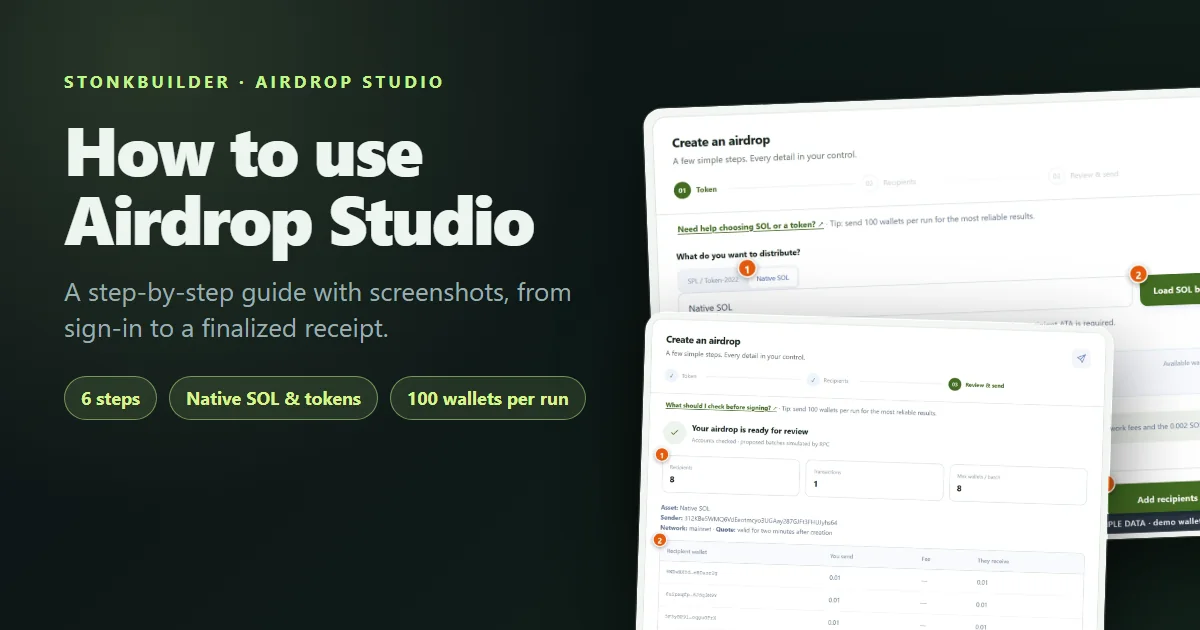
Airdrop Studio sends native SOL or a Solana token to many wallets in one guided flow. It is non-custodial: your wallet signs every transaction, and the studio never holds your funds or asks for a seed phrase.
This guide walks through the whole job with a screenshot for each step. It also shows how to keep runs small enough that the RPC (the Solana network connection) does not fail.
Every screenshot uses sample data: a demo wallet with no real funds and made-up recipient addresses. The screens are the real studio, but your balance and addresses will differ.
Before you start
Have these ready:
- A Solana wallet. Jupiter wallet is the primary connector. Use a desktop Chromium browser, such as Chrome, Brave or Edge, and unlock the wallet before you start.
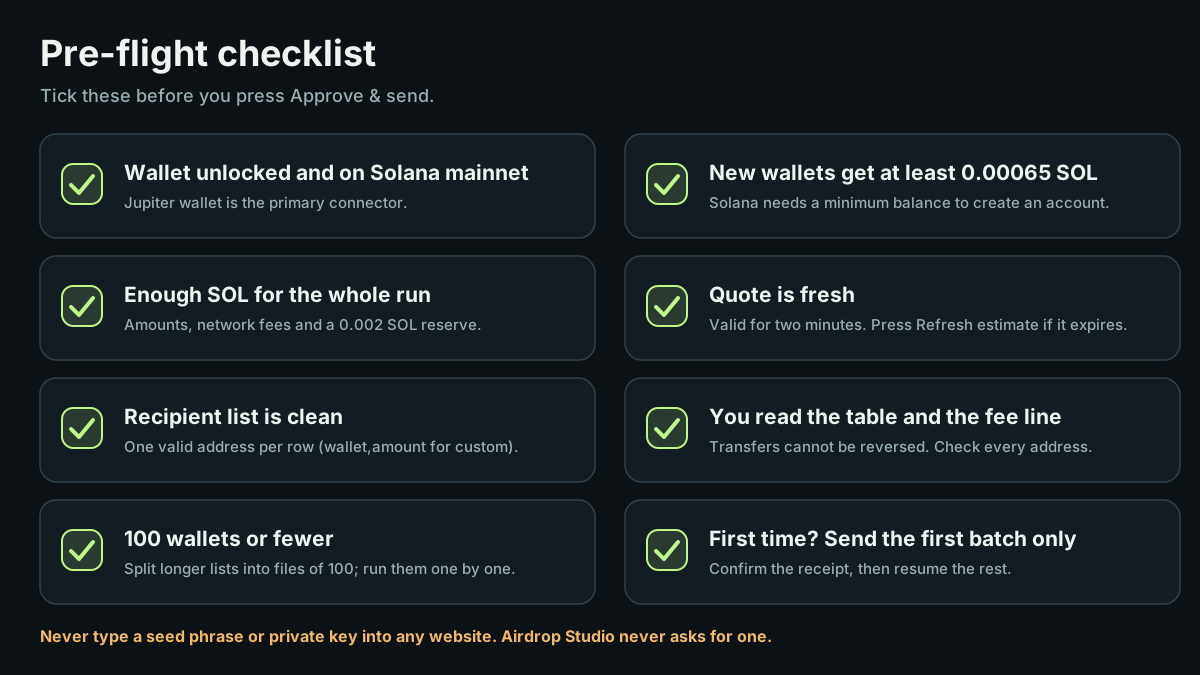
- SOL for costs. You pay the amounts you send and the network fees, and you keep a 0.002 SOL reserve.
- Something to send. Native SOL, or the mint address of an SPL or Token-2022 token that you hold.
- A recipient list. One wallet address per row, or one wallet,amount pair per row for different amounts.
- A plan of 100 wallets or fewer per run. Larger lists are covered in the section on sending to more than 100 wallets.
Get the Jupiter wallet extension
How to send to more than 100 wallets
What it costs:
| Cost | Who pays | Notes |
| --- | --- | --- |
| Amounts you send | You | Shown in the review table |
| Network fee | You | A fraction of a cent per batch, about 0.000005 SOL, quoted live |
| New token accounts | You | Tokens only: recipients without a token account get one, quoted live as account funding |
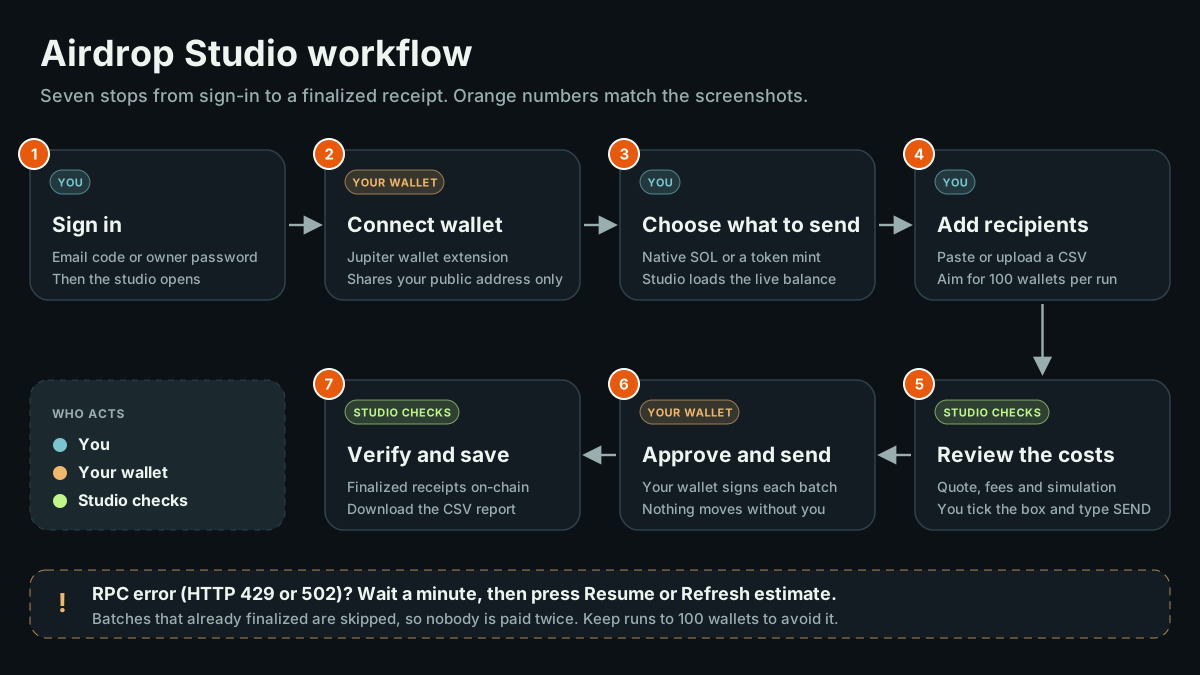
The workflow at a glance
Seven stops from sign-in to a receipt. The colours show who acts: you, your wallet, or the studio's automatic checks.
How to read the visuals in this guide
- Orange numbers. They point to the controls in the order you use them, and they match the numbered list under each image.
- The workflow diagram. It is the map. When you feel lost in the studio, find the step you are on here.
- Green, amber and red notices. Green is a check that passed, amber is a heads-up to read, and red is a problem you must fix before you can continue.
- The sample data tag. It means the figures are illustrative. In the real studio, trust only your own numbers.
- Help inside the studio. Look for the "Illustrated tutorial" link in the top bar and the "Need help" line above every step. Each one opens the matching section of this guide.

The tutorial link sits in the blue strip under the header, next to "How it works".
Step 1: Sign in or create your account
Open Airdrop Studio. You will see the sign-in page.
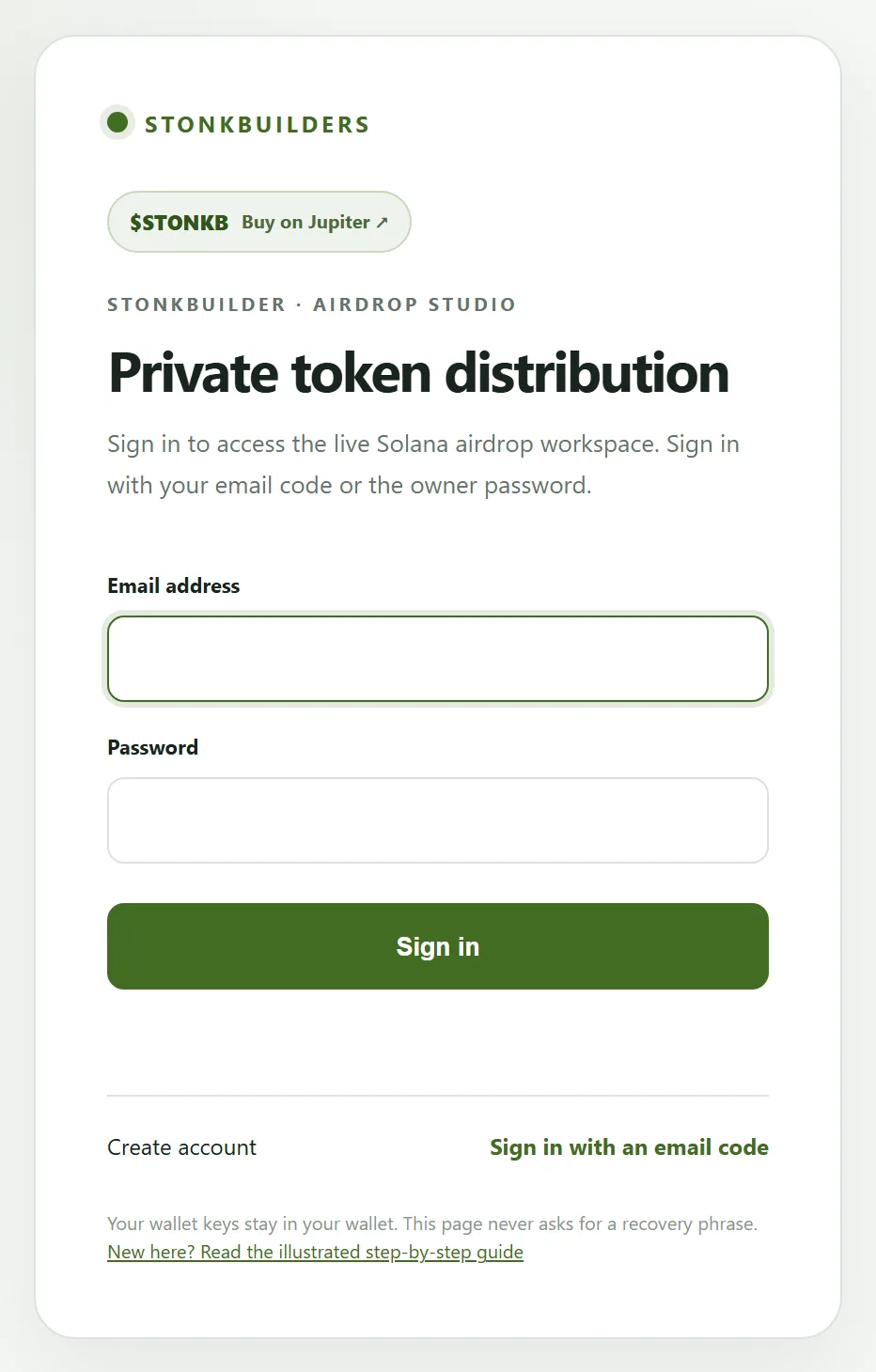
If you do not have an account yet, choose "Create account" and sign up with your email. There is no password to remember.
- Enter your email address.
- Tick the box that confirms you understand the studio is non-custodial.
- Press "Email me a code".
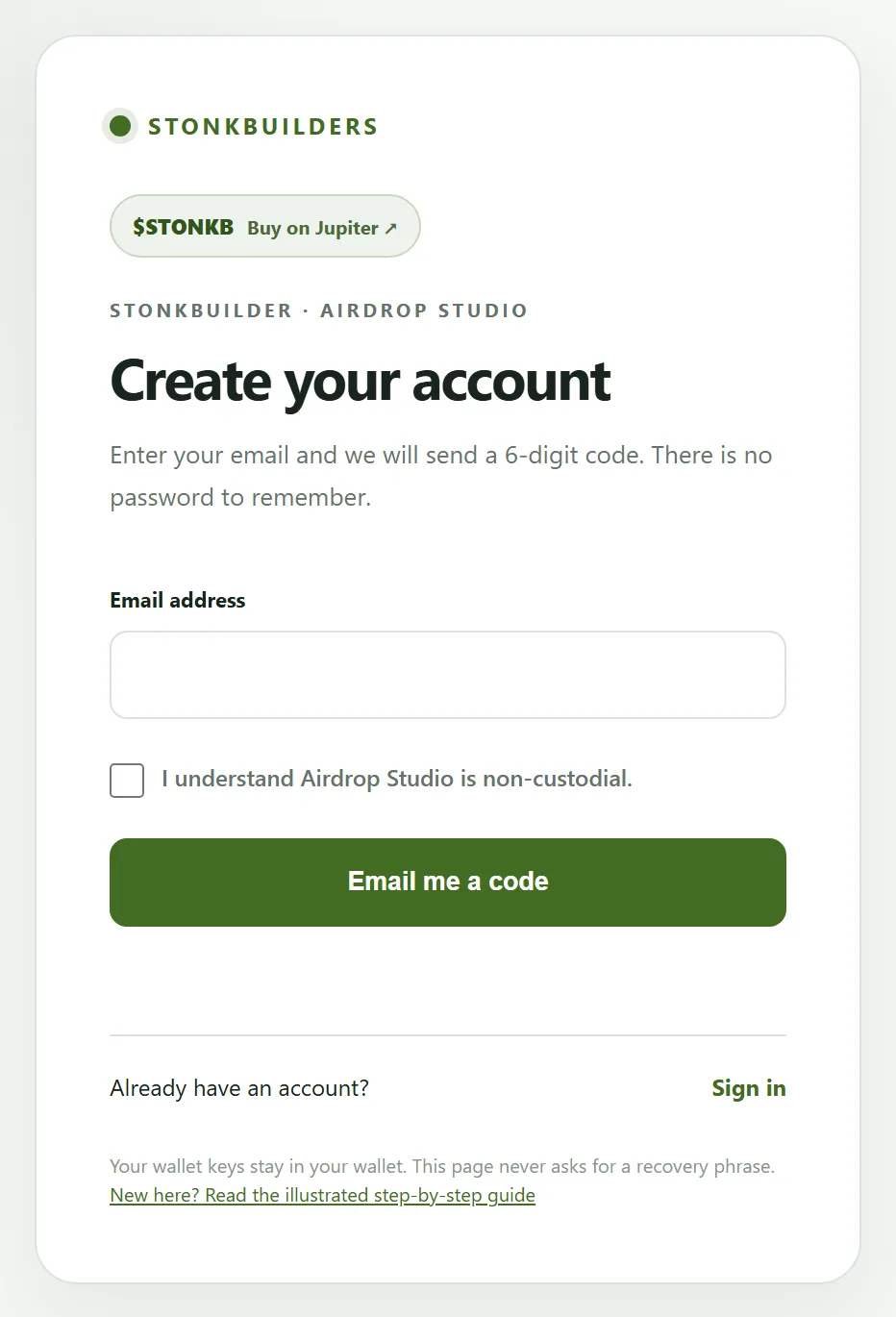
Check your inbox for a 6-digit code. Type it in and press "Verify and continue".
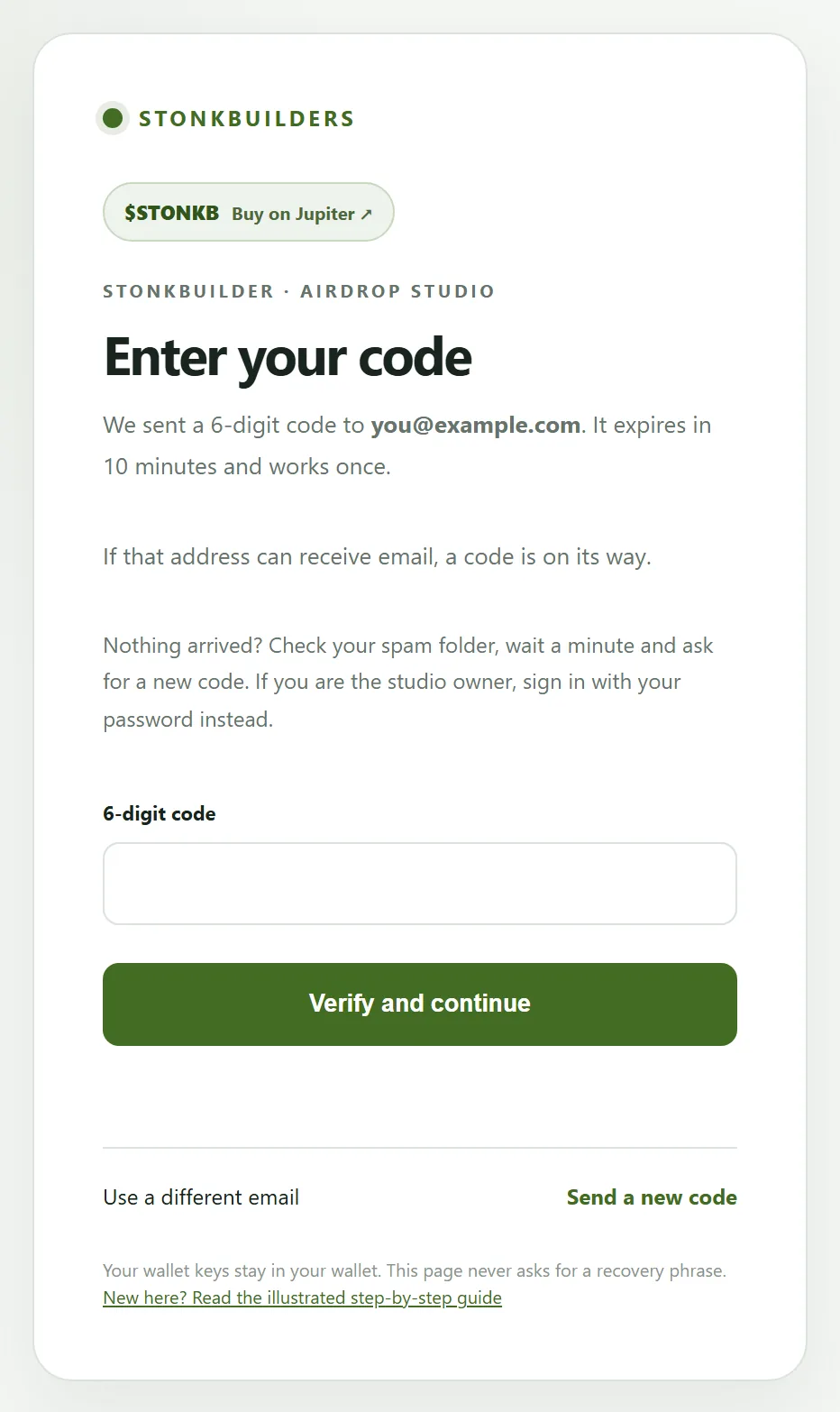
Good to know:
- A code works once and expires after 10 minutes.
- After 5 wrong tries the code is locked, so ask for a new one.
- You can ask for a new code after about a minute, up to 5 per hour for each address.
- Your session lasts 8 hours, then you sign in again with a fresh code.
- If nothing arrives, look in your spam folder and check the address for typos.
Step 2: Connect your wallet
After you sign in, press "Connect Jupiter" at the top right. Connecting shares only your public address. Every transfer still needs your approval in the wallet.
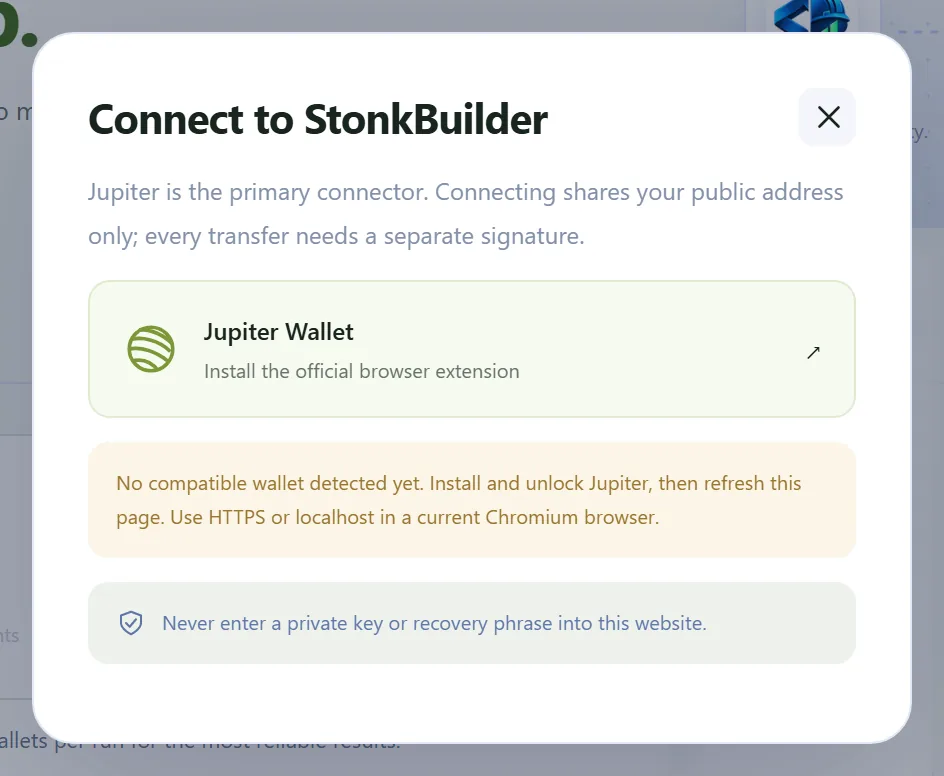
If no wallet is detected, the window links to the Jupiter wallet. Install it, unlock it and refresh the page.
Pick your wallet and approve the connection. The button then shows your shortened address.

- The wallet address on the button confirms that you are connected.
If you switch accounts in your wallet, reconnect before sending. The studio stops if the wallet changes in the middle of a run.
Step 3: Choose what to send
Pick the asset with the toggle at the top of the first step.
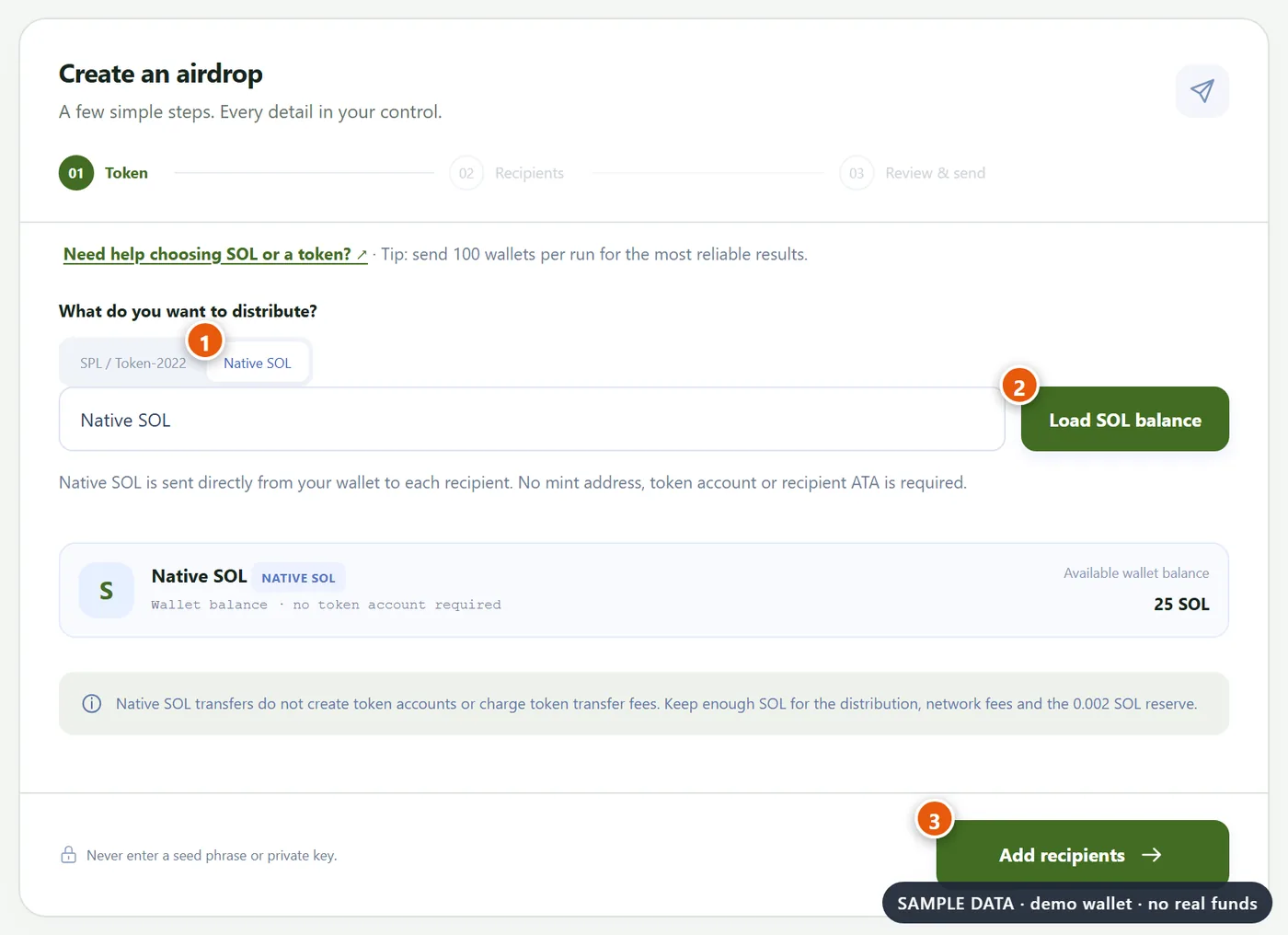
- Choose "Native SOL" to send SOL, or "SPL / Token-2022" to send a token.
- Press "Load SOL balance", or "Load token" after you paste the token's mint address. The studio reads the token program, the decimals and any transfer-fee rules directly from the network.
- Press "Add recipients" when your balance or token has loaded.
Native SOL goes straight from your wallet to each recipient. No token accounts are needed and there is no token transfer fee.
The mint address is the token's identity, not its logo or its name, so always paste it from a source you trust.
The studio supports standard SPL tokens and a safe subset of Token-2022, including transfer fees. Tokens with transfer hooks, confidential transfers or other unsupported extensions are rejected before you can sign.
Step 4: Add your recipients
Choose how amounts are decided, then add your wallets.
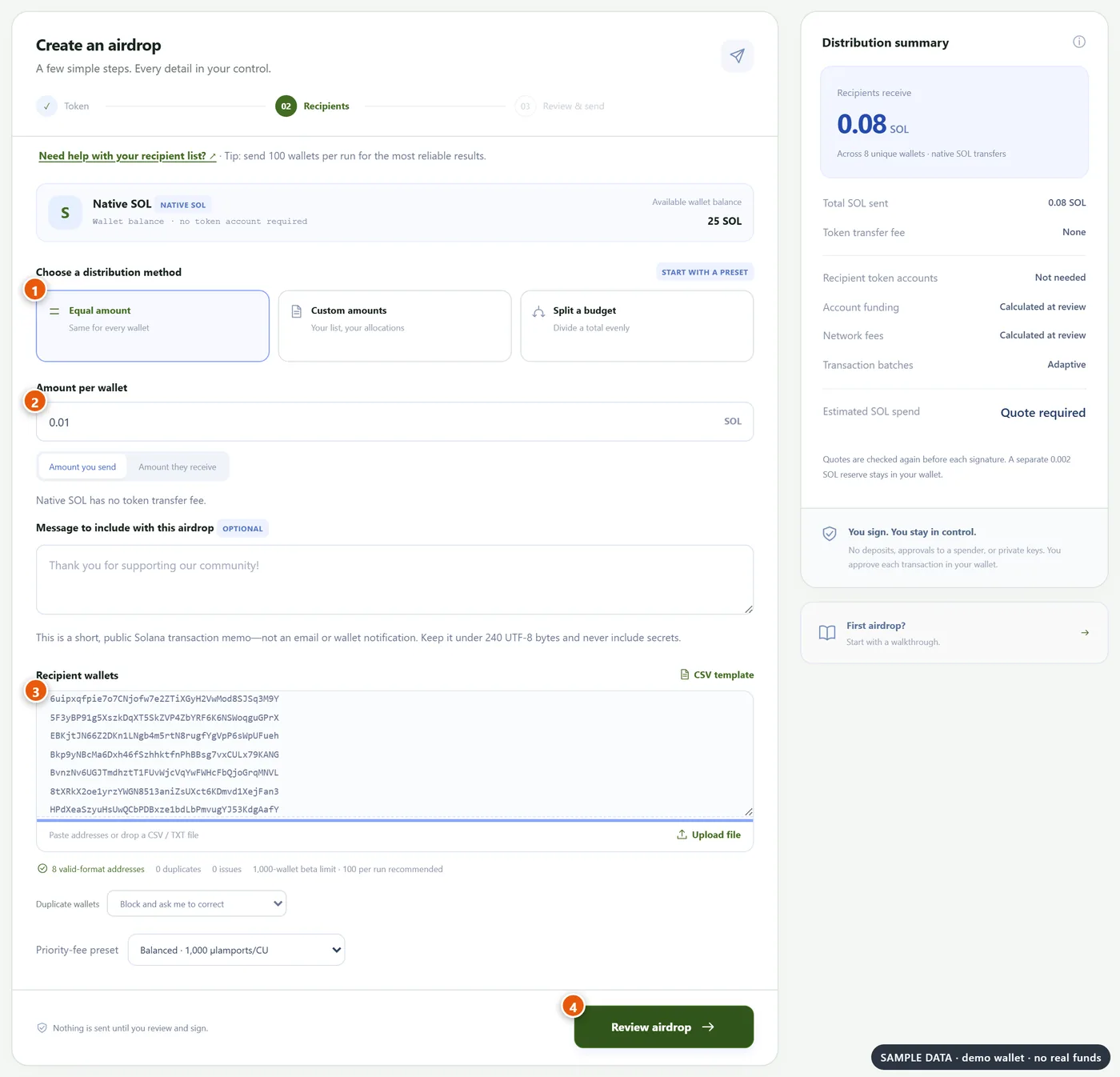
- Pick a distribution method. "Equal amount" gives every wallet the same. "Custom amounts" uses one wallet,amount pair per row. "Split a budget" divides a total evenly.
- For equal amounts, type the amount here. You can choose whether it is the amount you send or the amount they receive.
- Paste the addresses, one per row, or upload a CSV or TXT file. A CSV template is available as a starting point.
- Press "Review airdrop" when the validation line shows only valid addresses.
Things to check on this screen:
- The line under the box counts valid addresses, duplicates and issues. Fix every issue first.
- The duplicate setting decides what happens if an address appears twice. The safe default blocks and asks you to correct the list.
- The message is optional. It is a short public note stored in the transaction memo, not an email or a wallet notification, so never include secrets.
- The priority fee preset trades a slightly higher network fee for faster inclusion.
- Native SOL to a new wallet: a wallet that has never held SOL needs a minimum balance to exist, about 0.00065 SOL at the time of writing. Smaller amounts to brand-new wallets fail the simulation, so send at least that much.
If your list has more than 100 wallets, the studio shows an amber notice. It does not block you, but it is worth following:

Step 5: Review the costs
Press "Review airdrop". The studio checks the accounts, prices the transactions and simulates every batch before you can sign.
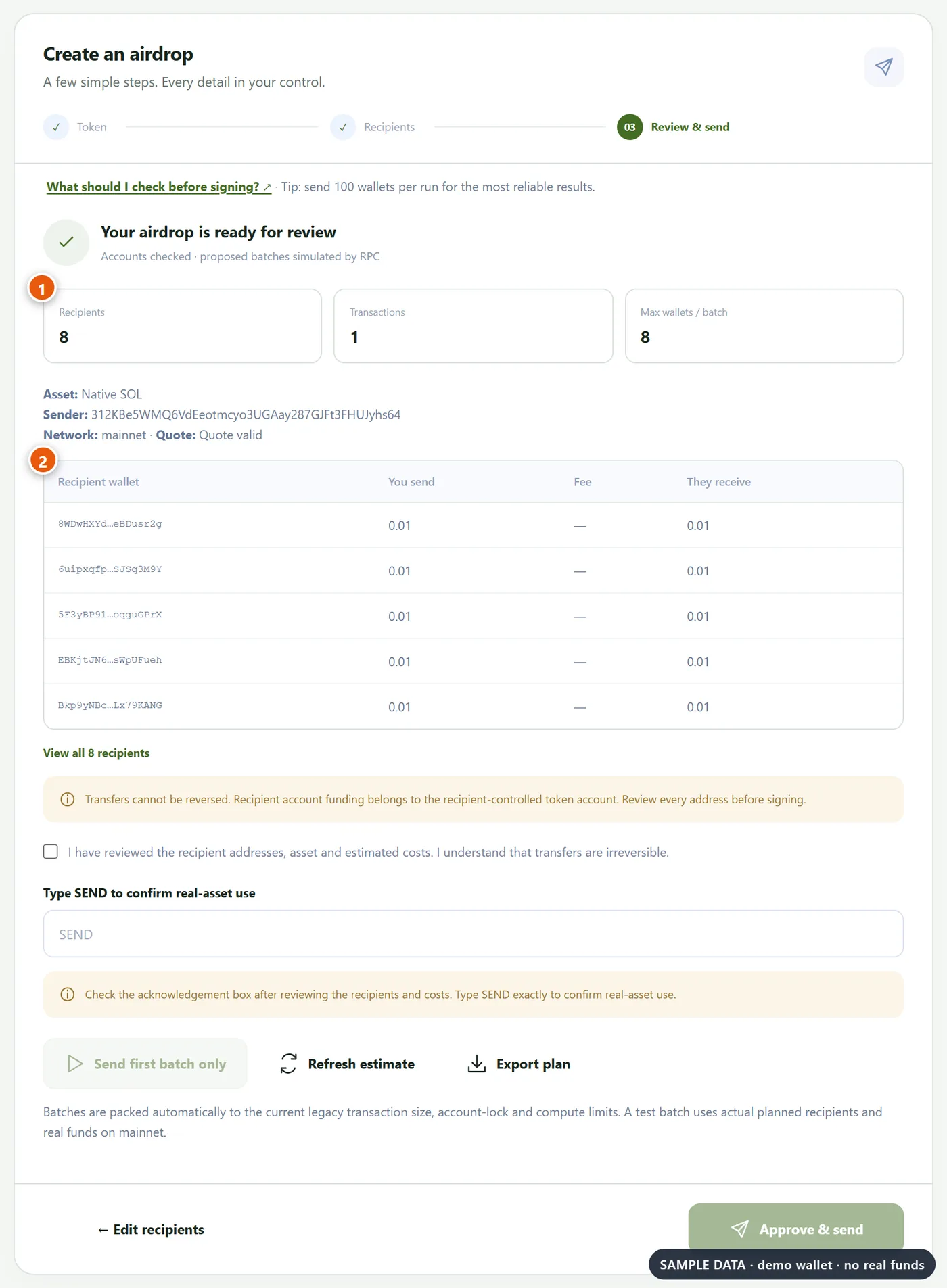
- The totals show the recipients, the number of transactions and the largest batch.
- The table lists every recipient, what you send, any token fee and what they receive. Read the addresses.
The cost summary is on the right. The quote is valid for two minutes. If it expires, press "Refresh estimate". Nothing about your list changes.
To unlock sending:
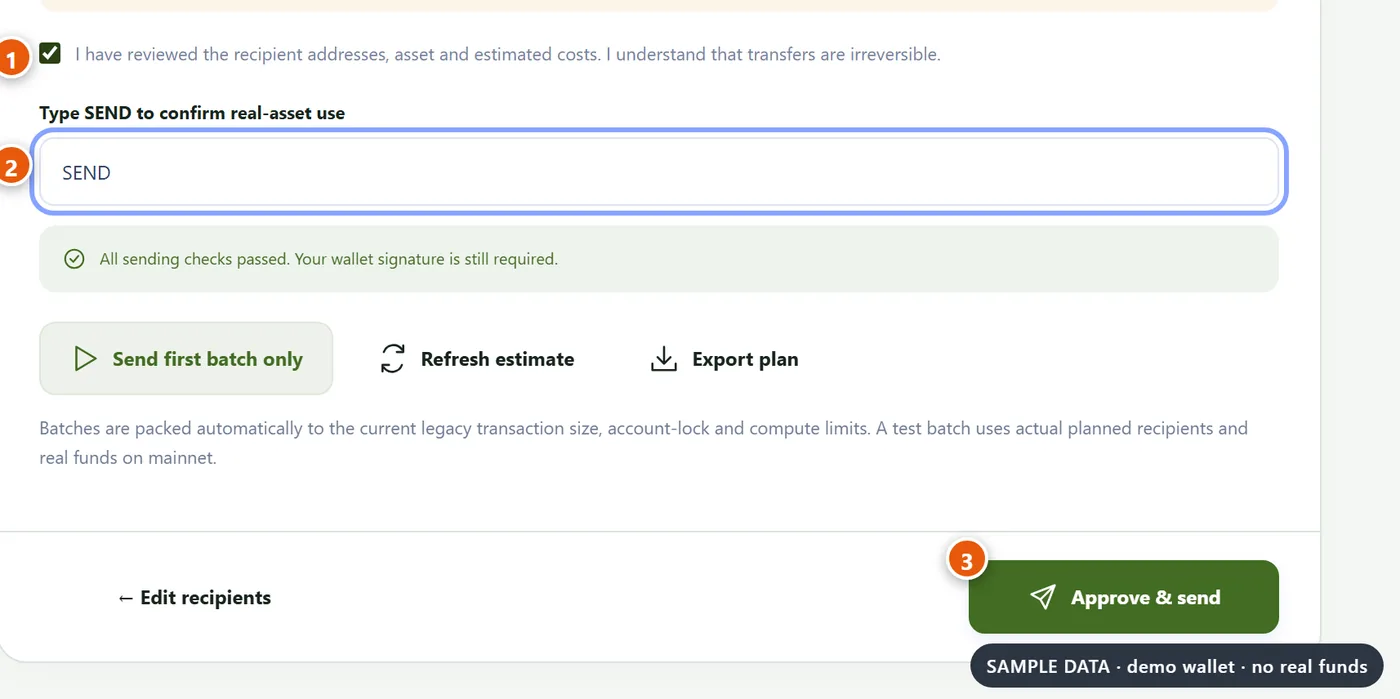
- Tick the box to confirm that you reviewed the addresses, the asset and the costs.
- Type SEND to confirm that you are using real assets.
- Press "Approve & send", or press "Send first batch only" to test with a single batch.
Transfers cannot be reversed. If this is your first run, use "Send first batch only", check the receipt, then resume the rest.
Step 6: Approve, send and save your receipt
Your wallet opens for every transaction. Approve each one. The studio sends it, waits for the network to finalize it, and then checks the on-chain receipt against what you approved.
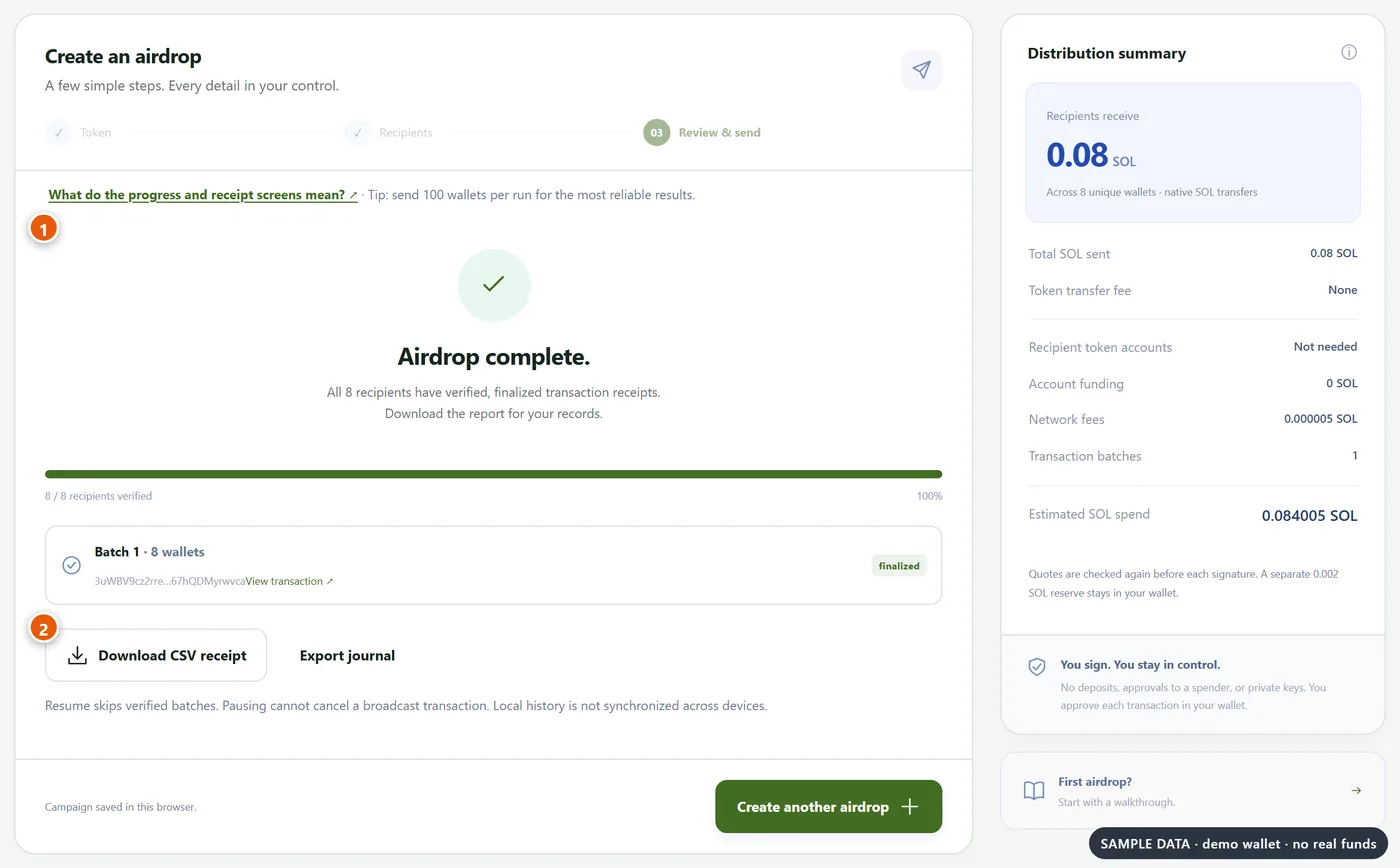
- "Airdrop complete" appears once every recipient has a verified, finalized receipt.
- Press "Download CSV receipt" for your records. "Export journal" saves the full technical log.
Your campaigns are listed under "My campaigns".
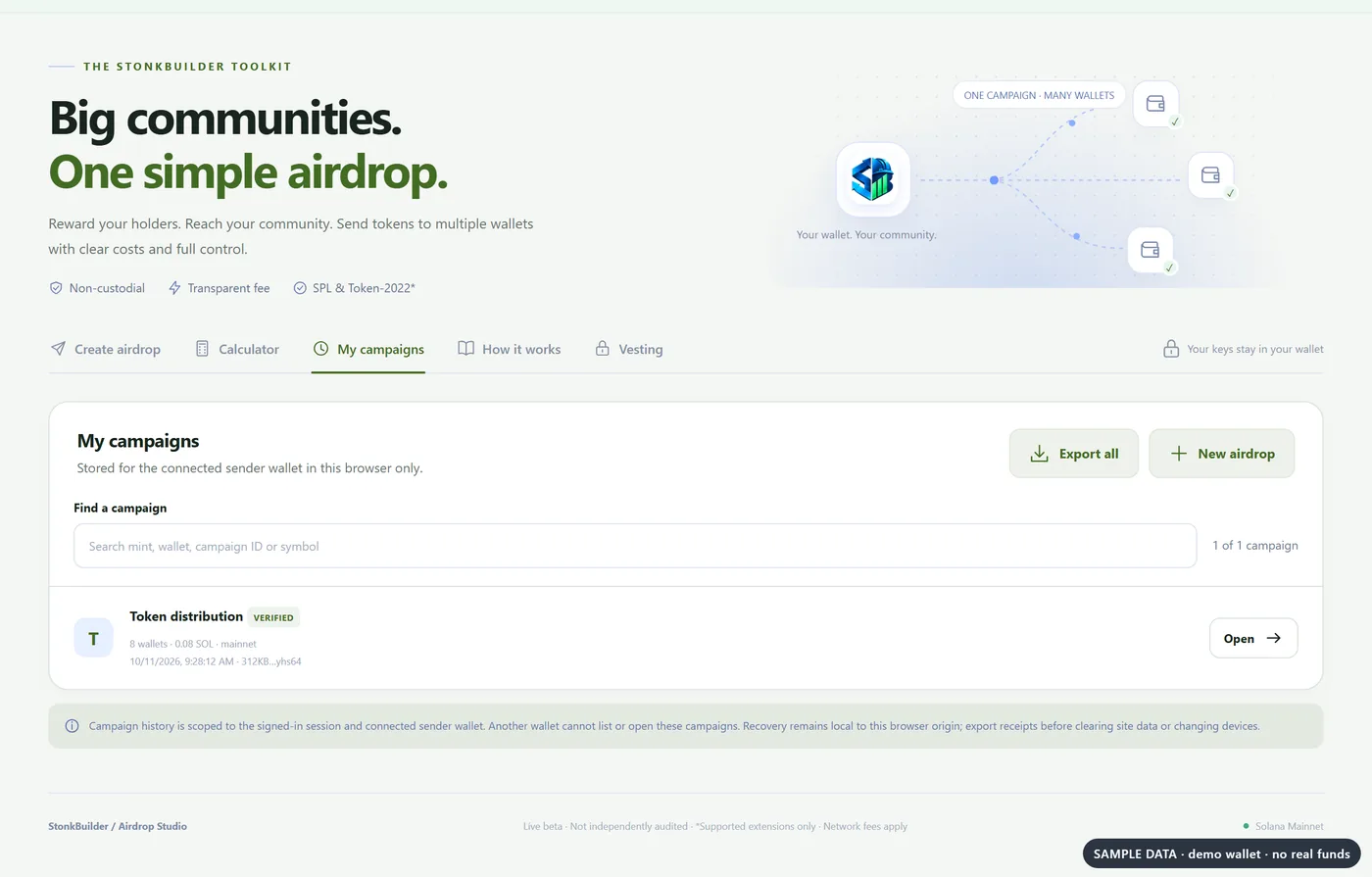
Important: campaign history lives in this browser only. Do not clear your browser data during a campaign, and download your receipt when it finishes.
While a run is in progress:
- Pause. It stops new batches after the current one. A transaction that was already sent cannot be recalled.
- Resume. It skips batches that are already verified and checks pending ones first.
- Retry. It appears only when a batch is proven to have failed or expired. An unresolved batch stays blocked so nobody is paid twice.
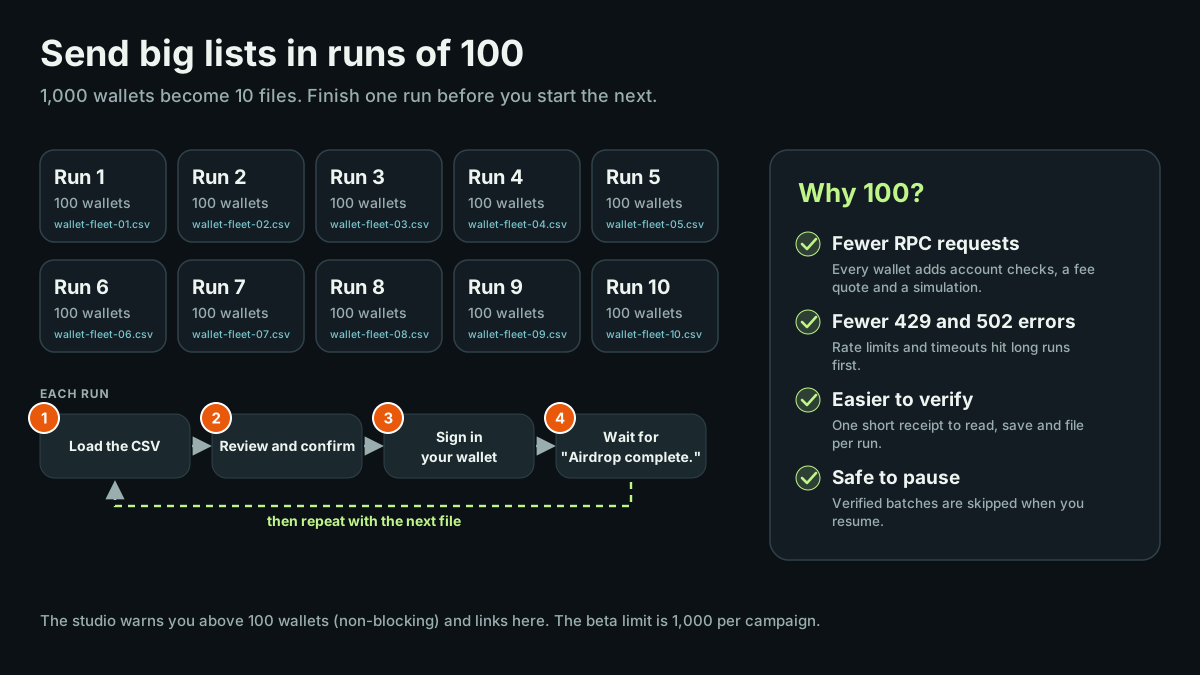
Sending to more than 100 wallets
Run lists of 100 wallets or fewer at a time. The studio accepts up to 1,000 per campaign in this beta, but long runs make many RPC requests: account checks, a fee quote and a simulation for every batch. Rate limits (HTTP 429) and timeouts (HTTP 502) hit those runs first.
Ten files, one run at a time. Finish a run before you start the next.
How to split a list:
- Spreadsheet. Copy 100 rows into a new sheet, add wallet as the header, and save it as a CSV file. Repeat for the next 100.
- Windows PowerShell. From the folder with a file called wallets.txt that has one address per line, run this:
$wallets = Get-Content "wallets.txt" | Where-Object { $_.Trim() }
for ($i = 0; $i -lt $wallets.Count; $i += 100) {
  $n = [int]($i / 100) + 1
  @("wallet") + $wallets[$i..([Math]::Min($i + 99, $wallets.Count - 1))] |
    Set-Content ("wallets-{0:D2}.csv" -f $n)
}- Linux, macOS with GNU split, or Git Bash. Run this:
split -l 100 -d --additional-suffix=.csv wallets.txt wallets-A header row is optional. The studio skips a first row that says wallet, address or recipient.
Then, for each file:
- Load the CSV and review it.
- Confirm, sign, and wait for "Airdrop complete".
- Only then start the next file with "Create another airdrop".
The studio keeps a private journal for your sender wallet. If a wallet shows up again in a later run, it warns you before you pay it twice.
If something goes wrong
| What you see | What it means | What to do |
| --- | --- | --- |
| RPC provider is temporarily unavailable or timed out (HTTP 502) | The network connection did not answer in time | Wait a minute, then press "Refresh estimate" or "Resume". Use smaller runs |
| RPC provider rate limit reached (HTTP 429) | Too many requests in a short time | Wait about a minute and try again. Keep runs to 100 wallets |
| Quote expired | The estimate is only valid for two minutes | Press "Refresh estimate" |
| Simulation failed with InsufficientFundsForRent | A brand-new wallet would end up under the network minimum | Send at least about 0.00065 SOL to new wallets |
| Insufficient SOL for this batch plus reserve | Your wallet cannot cover the amounts, fees and the 0.002 SOL reserve | Add SOL or reduce the amount |
| Wallet account changed or disconnected | You switched or locked the wallet | Reconnect the same wallet, then resume |
| No compatible wallet detected | The browser has no supported wallet extension | Install Jupiter wallet, unlock it and refresh the page |
If a batch shows as unresolved, do not create a replacement payment. Recheck its signature on a Solana explorer, then press "Resume".
Safety checklist
- Never type a seed phrase or private key into any website. Airdrop Studio never asks for one.
- Check every address, because transfers cannot be reversed.
- Use the mint address, not a logo or a name, to identify a token.
- Keep your own copy of the CSV receipt.
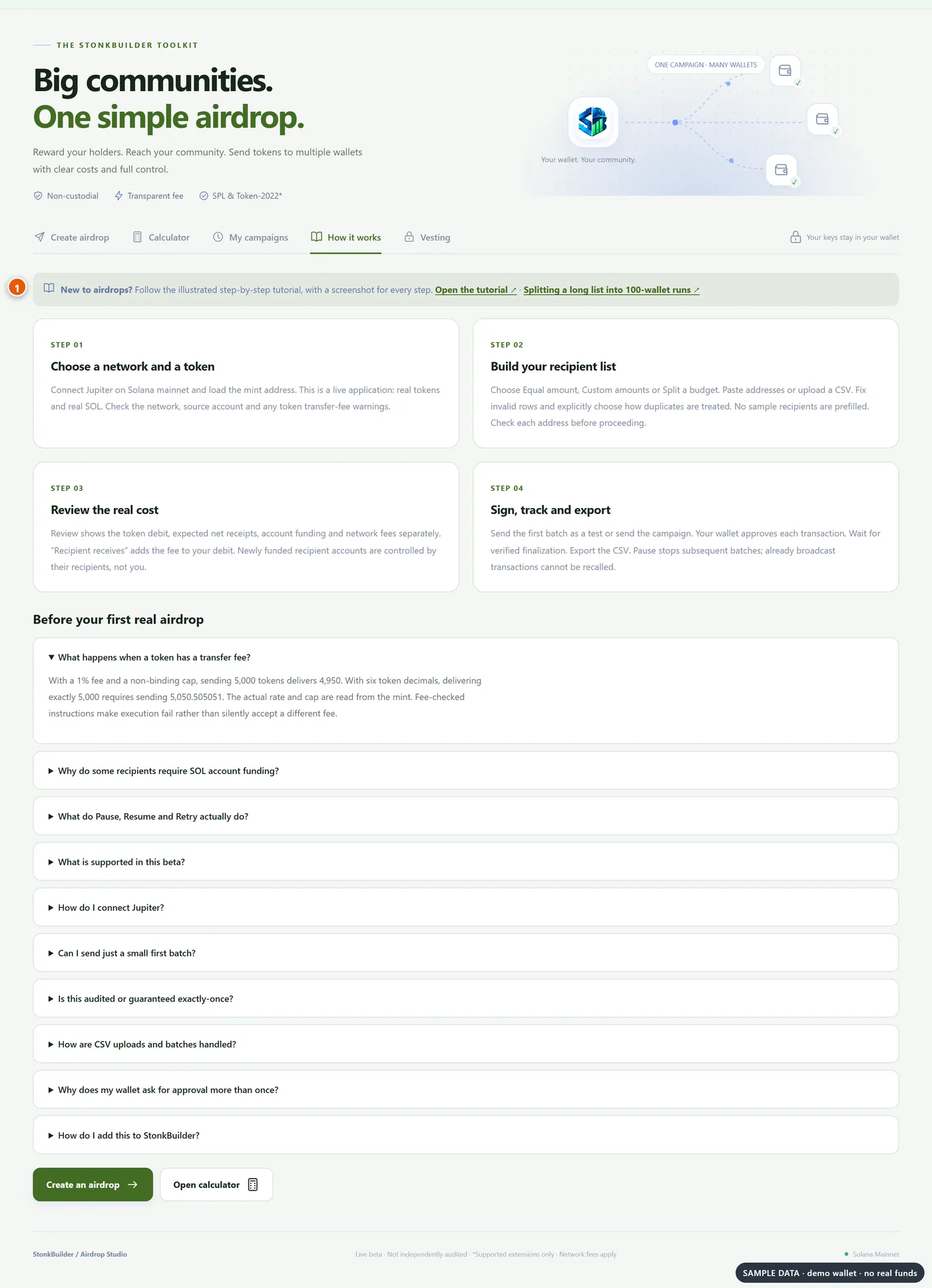
The "How it works" tab in the studio summarizes these steps and links here.
Frequently asked questions
Does StonkBuilder hold my funds or keys? No. Your wallet signs each transaction, and the studio only builds, checks and tracks them.
Which wallets work? Jupiter wallet is the primary connector. Other Solana wallets work if they support the Wallet Standard and legacy transaction signing. WalletConnect pairing is not supported.
Can I use my phone? Use a desktop Chromium browser with the wallet extension. Mobile wallet browsers need separate testing.
What does it cost? The amounts you send and the network fees, all shown on the review screen before you sign.
Why only 100 wallets per run? Fewer requests per run means fewer rate-limit and timeout errors, and each run is easier to verify. It is a recommendation, not a hard limit.
Is this audited? It is beta software and has not been independently audited. It uses standard Solana programs and conservative retries. Start with "Send first batch only" and keep your receipts.